Guest accounts, much like user accounts, have a life of their own. It begins with an invitation to a tenant and ends… well, when, exactly? Inviting guests is, at best, extremely simple, but the “next” and “end” steps prove to be difficult.
What sounds really nice and collaborative in theory—“Everyone can invite guests to Microsoft Teams”—carries many risks. Microsoft offers some features to manage the lifecycle of guest accounts, but for most large companies, these are not sufficient.
That’s why today we’re addressing the question: How do you classify a guest account and keep a close eye on it securely throughout its entire lifecycle?
We’ve found a way to better manage and control guest accounts throughout their entire lifecycle for an enterprise customer with 10,000+ employees.
Inhaltsverzeichnis
How does a guest join the tenant?
First, let’s briefly clarify how a guest actually joins your organization. This depends entirely on how it’s configured at the tenant level, in Microsoft Teams, and in SharePoint.
A global administrator can almost always create a guest in the Microsoft Entra Admin Center.
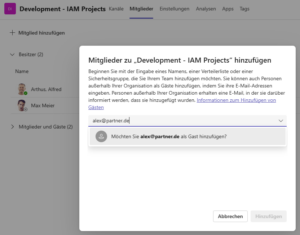 However, guests are usually invited to MS Teams.
Team owners can easily add external members to a team using their email address.
To do this, files or folders can be shared with external users via SharePoint or OneDrive.
However, the last two options are only available if this has been enabled within the organization. Microsoft offers various permission levels for this (ranging from “anyone can invite,” “only internal employees can invite,” “only specific employees or roles can invite,” to “no one except admins”).
Once the invitation is sent, the guest receives an invitation email from Microsoft. After accepting the invitation and successfully authenticating, the guest then has access to the shared resources.
- Many companies allow invitations via Teams, as this aligns with the app’s collaborative nature.
- Others completely revoke these rights from their employees and allow invitations only through the IT department.
- Still others seek more granular solutions, one of which we’d like to introduce to you.
💡Note: Through numerous projects with our customers, we know that the topic of “guest accounts” is a recurring headache. In our Guest Accounts Series, we examine various challenges that we’ve been able to solve in our customer projects.
If you’re interested, we also recommend these articles:
„What happens to unaccepted guest accounts in Microsoft Entra?“
„Can guest accounts be added to distribution lists?“
What are the real issues with the lifecycle of guest accounts?
So we’ve already arrived at the obvious vulnerabilities: Inviting users is easy, but managing and monitoring guest accounts is challenging.
No lifecycle management due to a lack of accountability
In the standard tenant, a guest often “belongs” to no one once they’re in the system. When IT asks, “Why is alex@partner.de in our system?”, no one knows the answer. While it’s possible to trace who invited the guest, there’s no permanent, visible link to a project manager. The guest simply exists.
With our IGA solution, the FirstWare IDM-Portal, you can define not only the sponsor attribute (the employee who invited the guest) but also a specific person in charge, such as a manager. This person is responsible for the guest throughout the guest’s entire lifecycle.
Over-privileged default settings
The default permissions for guests are surprisingly generous. For example, they can search for other users in the directory. While they don’t see everything, they often see more than necessary.
While this can be restricted in various ways (maximum isolation: “Guest user access is limited to properties and memberships of their own directory objects.”), many companies need finer-grained control that Microsoft does not currently provide. For example, it is often desired that guests be allowed to see only people from their own project.
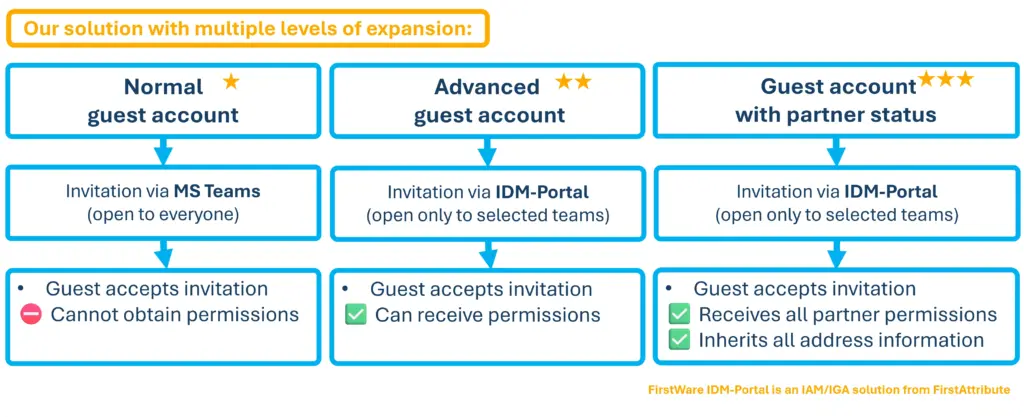
Our IGA solution enables fine-grained customization of guest accounts, ranging from simple guest accounts to guest accounts with privileged status (e.g., for partner companies). Work with us to define the guest access levels you need.
Guest accounts with no expiration date
Here’s how it works in practice: An employee invites a partner to join a project. The project ends, the employee leaves the company, and the guest account remains forever in the system. That’s because a guest account has no expiration date from the start. Unless you intervene (technically) by:
- Manual deletion: An administrator deletes the user in the Entra ID Portal.
- Automated lifecycle: Microsoft offers rigid solutions to work around this, such as “No login for 90 days = deletion.” But not every company wants such a strict, automated process for guest accounts.
With the IDM-Portal, both the guest and the manager receive a reminder after (for example) 80 days that the account is about to expire.
Collaboration vs. compliance
As mentioned several times before, the default settings in Microsoft are very open, meaning almost anyone can invite guests. Owners are allowed to do so by default anyway. Members cannot add guests directly, but they can send them a request. The team owner then simply needs to confirm this request.
Of course, as mentioned earlier, Microsoft does have levels of control in place.
Microsoft asks for consent to the privacy policy upon the first login, but this is very generic. Large companies often need to ensure that guests digitally sign an specific non-disclosure agreement (NDA). This is difficult to integrate natively with the standard invitations.
We believe that collaboration and compliance don’t have to be mutually exclusive. With the IDM-Portal, we reconcile both.
Our solution: Multi-level guest accounts and clear responsibilities
The customer’s situation: Loss of control over guest accounts
Our client, a large enterprise with more than 10,000 employees, had lost control over its guest accounts. The barriers to accessing the company as a guest via a guest account were low. The threshold for inviting guests was equally low. As is often the case, it was difficult to rein in processes once they had gotten out of hand.
All of these questions remained unresolved:
- How do you handle different types of guests?
- What happens after guests are onboarded?
- How do you control the permissions guests are granted?
- Who is responsible for the lifecycle of a guest account?
The customer uses the IDM-Portal for its entire Identity & Access Management. Together with the FirstAttribute team, the IDM-Portal was expanded to include a “Guest user interface”. In doing so, the guest account process was divided into:
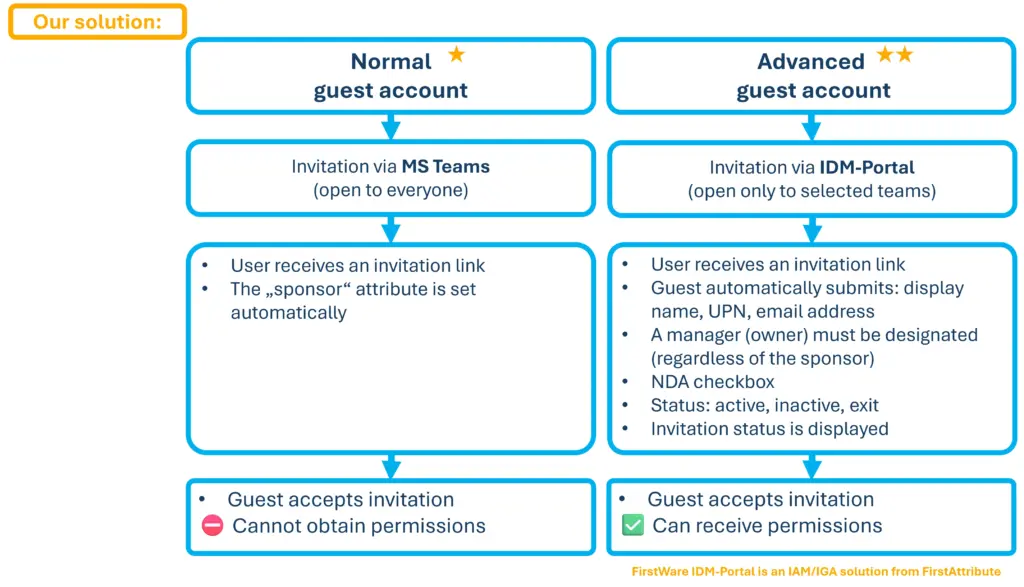
➡️ Normal guest account
➡️ Advanced guest account
🤓 Preview: In a subsequent update, special rules were also introduced for “guest accounts with partner status.”
Here’s how the two related processes differ:
Normal guest account
Every employee can still invite guests via MS Teams.
The guest receives an invitation link. The “sponsor” attribute is set automatically, meaning the inviting user is listed. When the guest accepts the invitation, they receive a basic guest account.
What can this “basic guest” do?
They can collaborate and chat in Teams channels, participate in group chats, and edit files within the channels. They can only collaborate within Teams but cannot, for example, receive software.
Extended guest account
A second option is the so-called “extended guest accounts”. These are treated as a separate identity type.
These guests are created and invited exclusively through the IDM-Portal by specialized IT teams, such as super admins, on-site IT, or the ServiceDesk.
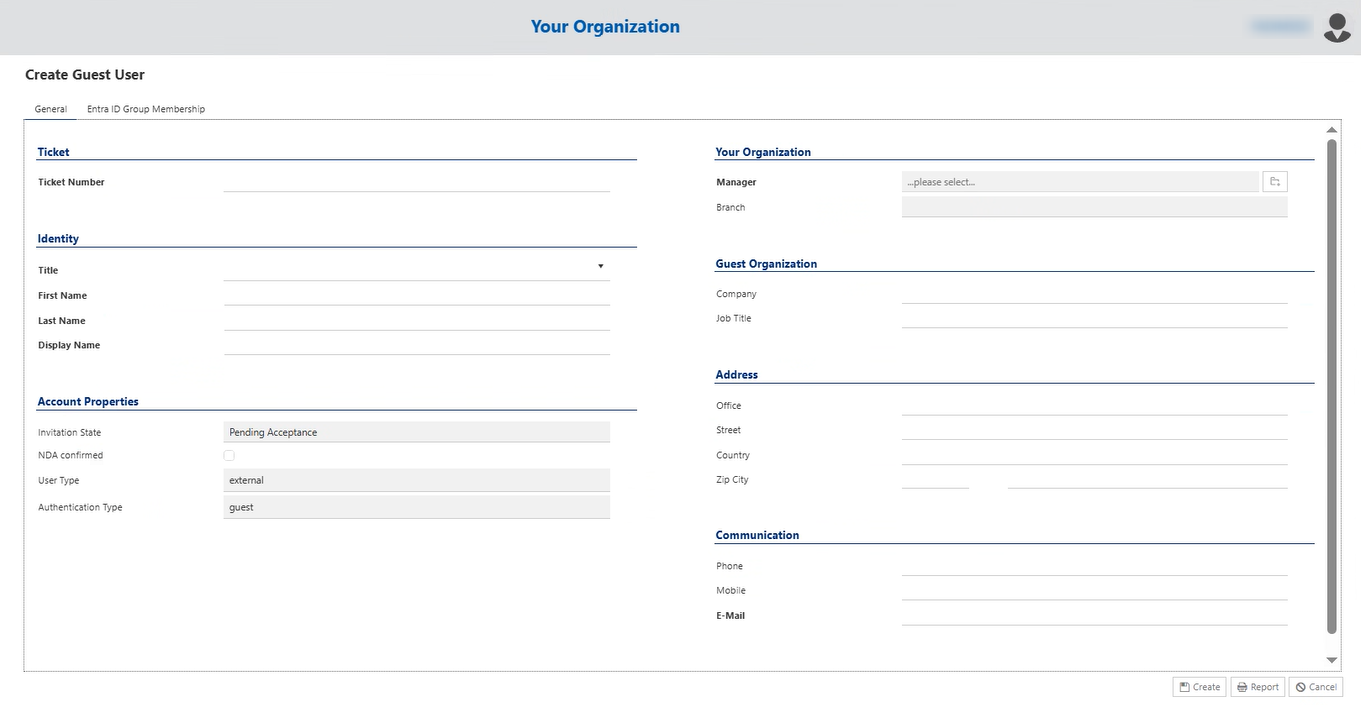
The process works as follows:
- The IT department receives a ticket requesting the creation of an advanced guest account.
- When filling out the form, the identity information (first and last name, as well as display name) must be entered, as well as the guest’s email address.
- The Manager must be designated. This is independent of the sponsor attribute (the person who invited the guest). It represents the permanent, visible link between the guest account and an internal employee who is responsible for the guest. Permissions can only be granted once the manager has been designated.
- The guest is created and receives an invitation link.
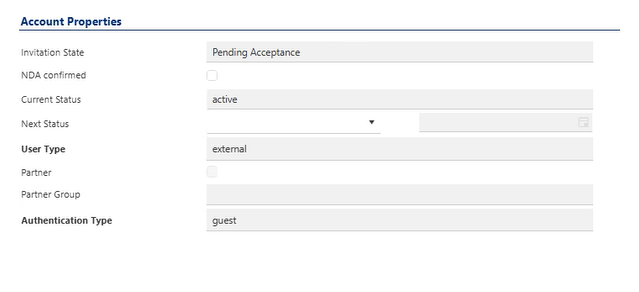
- The invitation status remains “Pending Acceptance” until the guest has confirmed.

- If the guest accepts the invitation, their display name, UPN, and email address are automatically transmitted and stored in the IDM portal.
- The invitation status changes to “Accepted”.
- The “Current Status” is displayed as “active” by default.
- Only after IT has manually confirmed acceptance of the Non-Disclosure Agreement (NDA) is the new guest considered an “extended guest” and can be granted special permissions. If there is no NDA, i.e., if the corresponding checkbox is not selected, the user cannot be granted permissions. If you try to add the user to a group in the IDM portal and save the changes, an error message appears.
- After agreeing to the NDA, the guest has the rights of an extended guest account.
What can this “extended guest” do?
Although this guest remains an external user with their own email address, the system treats them as an internal employee.
This enables them to collaborate much more seamlessly in MS Teams and SharePoint: They can search the directory directly for contacts, join organization-wide Teams, and use exclusive project hubs that remain off-limits to regular external users. In addition, they receive controlled access to sensitive SharePoint libraries containing important documents, as well as to shared SaaS services.
Conclusion
In large organizations, uncontrolled guest access without clear lifecycle management quickly leads to a loss of oversight.
Our solution addresses these vulnerabilities through intelligent differentiation within the IDM portal: While “Basic Guest Accounts” enable rapid collaboration in MS Teams, “Advanced Guest Accounts” provide a highly secure framework for the entire duration of the collaboration.
By establishing clear manager responsibilities, requiring manual NDA confirmation, and implementing a structured lifecycle, we ensure that external partners receive only as much access as they need. This process makes it possible to securely integrate trusted guests into business-critical applications and reliably revoke access once the project is complete.
More about FirstWare IDM-Portal
 The FirstWare IDM-Portal from FirstAttribute is a user-friendly IAM solution for the automated provisioning and lifecycle management of all identities and groups in complex, hybrid IT environments.
Through targeted delegation and role-based access management, it enables business departments to independently manage identity data and permissions—supplemented by powerful Identity Governance & Administration (IGA) features such as audit logs, recertification, and compliance reporting.